Rebuilding My iTerm setup in Alacritty
As I’ve fallen more down the rabbit hole, empowered by nix making it so easy to install, configure and manage any software, I discovered Alacritty as a fast, configurable terminal emulator.
I’ve used and enjoyed iTerm2 for a while but it never hurts to try something new.
I have some muscle memory built up for how my use my machine, so my aim was to configure something I could use comfortably in Alacritty, modeling it off of my iTerm setup.
What went well
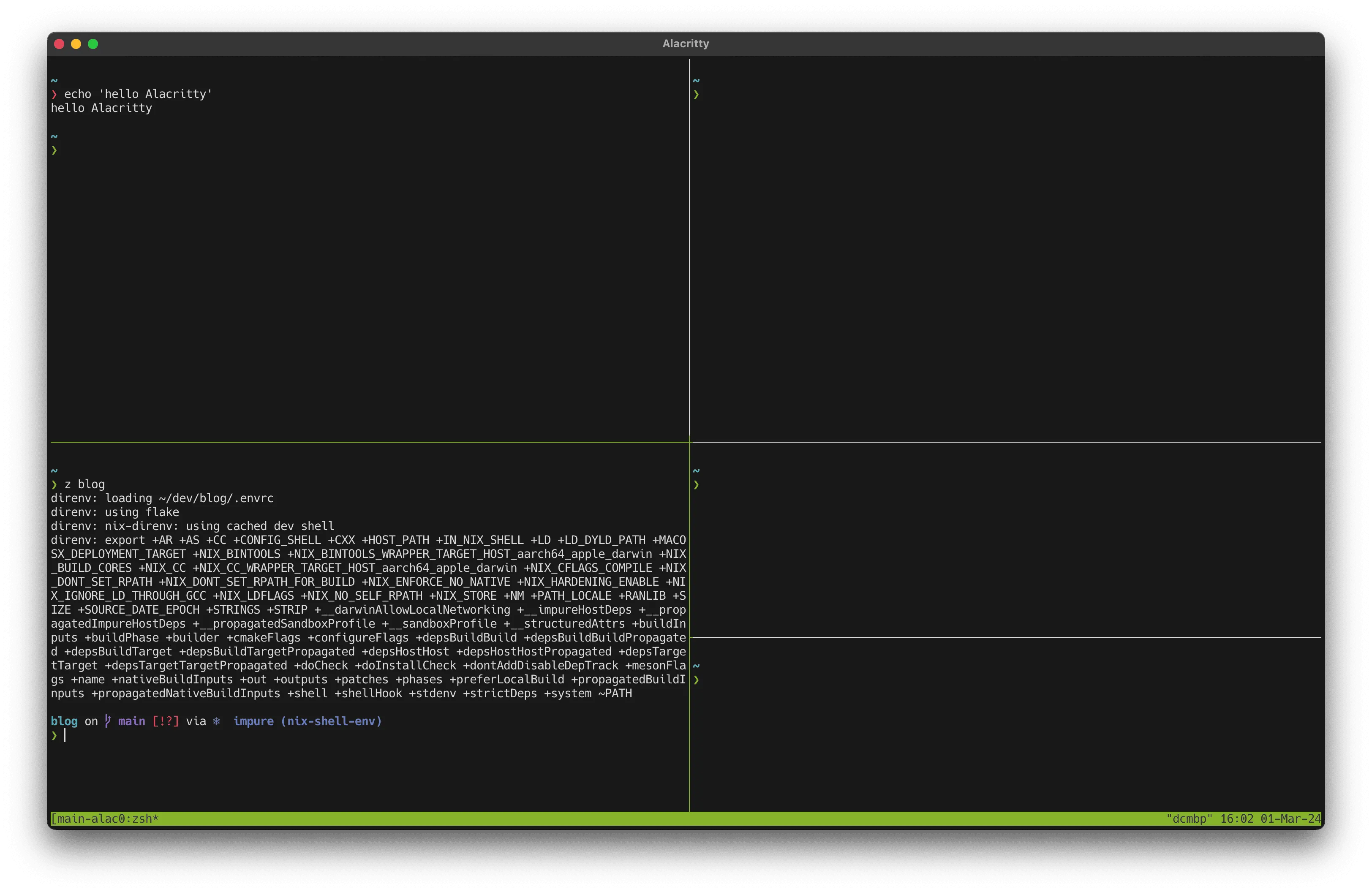
- Replicating my iTerm tmux pane creation, switching, and maximizing. After a bit of time, I mapped my existing iTerm keybindings to the proper tmux commands to reproduce nearly an identical experience.
- Starting a tmux session when Alacritty starts. This allows me to quit the Alacritty without losing my layout or anything that is running. I can also attach to it from any other terminal.
- Configuration for version control. It’s all in
~/config/alacritty/alacritty.toml. - Color configuration. It just works in the config.
- Nerdfonts. These just worked too.
- ⌘k, ⌘+, ⌘-, ⌘=, ⌘0 (to clear, resize and resize text size) all work the same way as iTerm by default, so that was a nice surprise.
- Mouse navigation. I’ve become used to being able to using the mouse to scroll up through the history of a pane’s output. By default,
tmuxscrolls through the command history. You need to enter copy-mode with ctrl+b [ for the mouse to be usable to scroll, then q to exit this mode and return to the command prompt. However, I was able to match the behavior I’m used to by addingset -g mouse onto~/.tmux.conf. I eventually pulled this out into my nix home-manager setup with a few other quality of life improvements, like inactive pane dimming.
programs.tmux = { enable = true; aggressiveResize = true; shell = "${pkgs.zsh}/bin/zsh"; terminal = "tmux-256color"; historyLimit = 100000; mouse = true; extraConfig = '' # dim inactive pane set -g window-style 'fg=color8,bg=default' set -g window-active-style 'fg=color7,bg=default' '';};This config also allows for pane selection by clicking and selection within a single pane. Pretty nice.
What could be better
- Pane closing. I don’t like having to confirm a pane close with
y, but it’s probably for the best because one day it will save me from losing something. ⌘f for find is different, not necessarily worse. I will have to see.
This is the alacritty.toml after my initial effort:
live_config_reload = true
# start zsh then attach to a consistent tmux session that lives beyond quitting the app[shell]program = "/etc/profiles/per-user/danielcorin/bin/zsh"args = ["--login", "-c", "tmux new-session -A -s main-alacritty"]
[font]size = 14.0
# installed via nix[font.bold]family = "Hack Nerd Font Mono"style = "Bold"
[font.italic]family = "Hack Nerd Font Mono"style = "Italic"
[font.normal]family = "Hack Nerd Font Mono"style = "Regular"
[font.bold_italic]family = "Hack Nerd Font Mono"style = "Italic"

# sublime text monokai[colors.bright]black = "#666666"red = "#f92672"green = "#A6E22E"yellow = "#e2e22e"blue = "#819aff"magenta = "#AE81FF"cyan = "#66D9EF"white = "#f8f8f2"
[colors.normal]black = "#333333"red = "#C4265E"green = "#86B42B"yellow = "#B3B42B"blue = "#6A7EC8"magenta = "#8C6BC8"cyan = "#56ADBC"white = "#e3e3dd"
[colors.cursor]cursor = "0xd8d8d8"text = "0x181818"
# highlight copies text, only really useful when a pane is in full screen unless selection isn't multi-line[selection]save_to_clipboard = true
[window]decorations = "Full"dynamic_padding = truedynamic_title = true
# the default padding[window.padding]x = 2y = 2
# vertical, slightly thickened cursor[cursor]style = "Beam"unfocused_hollow = falsethickness = 0.2
[keyboard]bindings = [    # ⌘ + enter puts window in macOS full screen    { key = "Enter", mods = "Command", action = "ToggleFullscreen"},    # opt + right and left jump between words    { key = "Right", mods = "Alt", chars = "\u001BF" },    { key = "Left",  mods = "Alt", chars = "\u001BB" },    # ⌘ + d adds a pane to the right (splits window vertically)    { key = "D",  mods = "Command", chars = "\u0002%" },    # ⌘ + ⇧ + d adds a pane below (splits window horizontally)    { key = "D",  mods = "Command|Shift", chars = "\u0002\"" },    # ⌘ + w prompts you to close the pane, "y" to confirm    { key = "W",  mods = "Command", chars = "\u0002x" },    # ⌘ + arrows are for directional navigation around the panes    # move down a pane    { key = "Down", mods = "Command", chars = "\u0002\u001b[B" },    # move up a pane    { key = "Up", mods = "Command", chars = "\u0002\u001b[A" },     # move left a pane    { key = "Left", mods = "Command", chars = "\u0002\u001b[D" }    # move right a pane    { key = "Right", mods = "Command", chars = "\u0002\u001b[C" },    # ⌘ + ⇧ + enter maximizes the pane within the alacritty window    { key = "Enter", mods = "Command|Shift", chars = "\u0002z" },]
Eventually, I ported these to my home-manager config, which creates the ~/.config/alacritty/alacritty.toml for me using nix-darwin.
programs.alacritty = { enable = true; settings = { # ... omitted for brevity };};Another nice (terrible?) thing about this project was I learned and remembered a bunch of tmux along the way.
My tmux modifier is ctrl+b which is not that nice to type.
d: detach": split horizontal%: split verticalx: close pane with confirmation- arrows: navigate between panes
Recommended
Rebuilding My iTerm Setup In Wezterm
I spent a bit of time configuring WezTerm to my liking. This exercise was similar to rebuilding my iTerm setup in Alacritty. I found WezTerm to be...
Subscribe
Get notified when I publish new posts. No spam, I'll never share your email, unsubscribe anytime.